Here's the article opening:
Every submission that fails App Store review costs you the same thing: 24 to 48 hours in Apple's re-review queue, plus whatever time it takes you to actually fix the problem. An app store review guidelines checklist exists to close that gap — a self-review pass mapped to Apple's own guideline sections so you catch what a reviewer would catch, before they do.
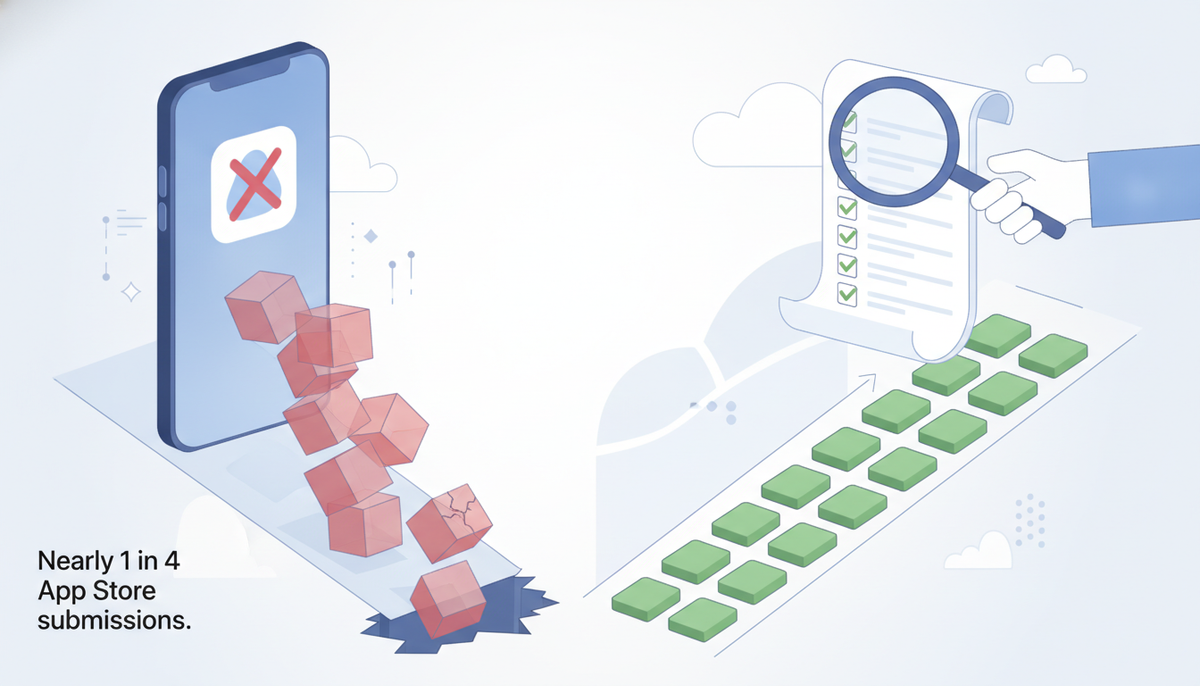
Apple rejects roughly a quarter of submissions on the first pass. That number holds steady year over year, and it's not because indie developers are shipping broken apps. Most rejections trace back to a small set of predictable failures: a permission string that doesn't explain itself, a subscription screen missing a required disclosure, a support URL that 404s, a screenshot that shows a feature not yet in the build. None of these are hard to fix. They're hard to notice, because by the time you're submitting, you've stopped seeing your own app with fresh eyes.
That's the gap this checklist closes. Each section below maps to a specific part of Apple's App Review Guidelines — Safety, Performance, Business, Design, Legal — so you can walk through your build the way a reviewer will: install, tap through, check the metadata against what's actually in the app. If you want to see what a full pass looks like before you build your own, the sample report shows exactly the kind of issues this process is built to catch.
Key takeaways
- App Store review requires a working, in-app account deletion flow under Guideline 5.1.1(v) — a "contact support to delete" email or a deactivation toggle does not satisfy the requirement.
- Every subscription paywall must show price, duration, and auto-renewal terms in plain text next to the purchase button per Guideline 3.1.1, not buried in a linked Terms page.
- Apple rejects roughly a quarter of first-time submissions, and most failures trace back to Guideline 2.1 (crashes, broken links, placeholder content) or 2.3 (metadata that doesn't match the shipped build).
- Purpose strings like
NSCameraUsageDescriptionmust name the specific in-app feature (e.g. "Used to scan receipts for expense tracking") — generic text such as "This app needs camera access" gets flagged under Guideline 5.1.1. - A missing or non-functional "Restore Purchases" button is an automatic rejection for any app selling non-consumable IAPs or subscriptions.
How Apple's App Review Actually Works
Apple doesn't review apps against a single flat list. The App Review Guidelines are organized into five categories, and understanding that structure matters because it tells you where to look for the class of problem you're worried about — a crash lives in a different bucket than a misleading subscription flow, and they get flagged differently.
The five guideline categories: Safety, Performance, Business, Design, Legal
Safety covers anything that touches user protection: objectionable content, user-generated content moderation, data collection and privacy disclosures, kids' category restrictions, and physical safety if your app controls hardware. This is where most privacy-related rejections live — missing purpose strings, undisclosed data collection, or a Sign in with Apple omission when you offer other third-party logins.
Performance is the technical bar: your app has to actually work. Complete, launches without crashing, uses public APIs only, and — critically for indie developers — has to be a "complete" experience, not a beta, demo, or placeholder shell. Broken links inside the app and unfinished features fall here too.
Business governs how you make money: in-app purchase rules, subscription disclosure requirements, and the boundary between what has to go through Apple's payment system versus what can happen outside it. This category also covers app duplication (submitting near-identical apps) and general business model legitimacy — Apple wants a real product, not a shell for extracting a one-time review pass.
Design is Apple's baseline for a non-broken user experience: no placeholder content, functional UI on all supported device sizes, and enough functionality that the app isn't just a repackaged website. It's a lower bar than Apple's Human Interface Guidelines, but violating it is a guaranteed rejection.
Legal covers the stuff that's outside app functionality entirely: export compliance declarations, third-party licensing, and regional legal requirements (data handling laws vary by territory, and Apple expects your privacy practices to match wherever you distribute).
What reviewers actually do in a review session
Here's the part indie developers underestimate: a human reviewer typically spends just a few minutes with your app. They install the build, tap through the primary flows, try to trigger the core feature, and check that your metadata — screenshots, description, age rating, permission prompts — matches what the app actually does. They are not reading your code. They are not testing every edge case. They're running a fast, surface-level pass looking for mismatches between what you claimed and what they see.
That's exactly why a "reviewer run" — walking your own app the way a reviewer would, in one sitting, right before submission — catches what unit tests and manual QA miss. It's the single highest-leverage five minutes you can spend before hitting submit.
Two sections for the App Store review guidelines checklist article, matching brand voice and linking to the specified pages.
Metadata and Screenshots Checklist
Guideline 2.3 (Accurate Metadata) is where Apple catches the gap between what your listing promises and what your app actually does. It's a fast, cheap reject — a reviewer spots a mismatch in under a minute, and your build goes back in the queue. Run this checklist before you hit submit.
App name, subtitle, and description accuracy
Your app name field is not a keyword dump. Apple's guidelines cap the name at 30 characters and expect it to reflect what the app does — stuffing it with "Best Free Photo Editor Pro HD 2026" reads as manipulation, not branding, and reviewers flag it under 2.3.7 as often as they flag broken functionality. Same logic applies to the subtitle: it should describe a real feature or value prop, not repeat keywords from your description.
The description itself gets checked against the binary. If you write "supports Apple Watch" and there's no watchOS target, that's a 2.3.1 rejection. If you mention a feature that's behind a paywall you haven't disclosed, that's a metadata problem and an In-App Purchase problem stacked together — the kind of compounding issue that RevenueCat metadata gaps tend to create when subscription details aren't reflected in both the binary and the listing.
Screenshots and preview videos must match the real app
Every screenshot in your listing has to come from the actual shipping build — not a Figma mockup, not a "coming soon" feature, not a marketing composite with UI elements that don't exist yet. Reviewers install the build and compare it to what's on the listing page. If your screenshots show a dashboard your free tier doesn't unlock, or a dark mode that isn't implemented, that's an instant 2.3.3 flag.
Preview videos get the same scrutiny, plus one more requirement: they have to be captured from actual device usage, not simulated animation. If you're demoing a flow that requires login, show the real login screen, not a placeholder.
No placeholder or Lorem Ipsum content
This one trips up indie devs shipping fast: leftover "Lorem ipsum" text, placeholder images, or TODO strings anywhere a reviewer can reach — onboarding screens, empty states, settings pages — reads as an incomplete app under Guideline 2.1. Walk every screen in the build you're about to submit, not just the happy path. Reviewers do the same, and they don't give partial credit for "we'll fix that in the next update."
If you want a sense of how granular these catches get in practice, the sample report shows what a pre-submission metadata scan flags — down to specific screen and string-level mismatches, before Apple ever sees the build.
Privacy and Data Collection Checklist
Privacy is the single most-cited rejection cluster in 2026 submissions. Most of it isn't complicated — it's three specific, checkable things that get skipped under deadline pressure.
Privacy policy URL and in-app findability (5.1.1)
Guideline 5.1.1 requires a working privacy policy URL in App Store Connect, and it has to be reachable from inside the app too — not just the listing page. A link buried in a support email doesn't count. Put it somewhere obvious: settings, onboarding, or an account screen, and make sure it isn't gated behind a login reviewers won't have credentials for.
The policy text itself has to actually describe what you collect — generic boilerplate that doesn't mention your specific data types (location, analytics, push tokens) gets flagged as inaccurate, not just missing. If you want a reference for what a policy scoped to a specific app's data collection looks like, see SubmitPreflight's own privacy page.
PrivacyInfo.xcprivacy and App Privacy label accuracy
Since the privacy manifest requirement rolled out, Apple cross-checks your PrivacyInfo.xcprivacy file, your declared App Privacy "nutrition label" in App Store Connect, and what the binary's third-party SDKs actually do at runtime. A mismatch anywhere in that triangle — say, an analytics SDK collecting device identifiers that isn't disclosed in either the manifest or the label — is now one of the fastest-growing rejection reasons. If you're on Expo, this is worth double-checking after every SDK upgrade or new native module, since permission strings and privacy manifests don't always regenerate automatically; see the Expo App Store permission description guide for how the config plugin maps to what actually ships.
In-app account deletion (5.1.1(v))
If your app supports account creation, it must support account deletion from inside the app — not deactivation, not a "contact support to delete" email flow, not a web-only deletion page. The user needs to be able to initiate permanent deletion of their account and associated data from within the app itself, reachable without contacting anyone.
"Deactivation" (hiding the account but keeping the data live) does not satisfy 5.1.1(v) even if you call it "delete" in the UI — reviewers test this by actually tapping through the flow. If deletion has to happen server-side asynchronously, that's fine, but the in-app action has to trigger it, not just open a form. For Expo apps specifically, where this often gets bolted on late, the Expo account deletion implementation guide covers the flow end to end, including the backend call and confirmation UX Apple expects to see.
In-App Purchase and Subscription Checklist
If your app sells subscriptions or one-time IAPs, this is where reviewers spend the most time — and where they reject the most predictably. Guideline 3.1.1 is specific about what has to be visible before money changes hands, and Apple's testers check it manually, not just via automated scan.
Guideline 3.1.1: full pricing and renewal terms before payment
Before a user taps "Subscribe," they need to see: the length of the subscription, the price, and what happens at renewal — auto-renews unless canceled, and how to cancel. This can't be buried in a Terms link. It has to be on the paywall screen itself, in plain text, next to the purchase button. A common indie mistake is showing a price but not the renewal cadence ("$9.99" instead of "$9.99/month, auto-renews unless canceled at least 24 hours before the end of the current period"). If you're using a free trial, the trial length and what it converts to also need to be stated up front — not just in a footnote the reviewer has to scroll to find.
Restore Purchases must work
Every app with non-consumable IAPs or subscriptions needs a visible, functioning "Restore Purchases" button. Apple testers reinstall your app, tap restore, and expect prior purchases to come back with no extra steps. If restore is missing, hidden behind a support-ticket flow, or silently fails because your entitlement check doesn't run on restore (not just on purchase), that's an automatic rejection. Test this on a real device with a fresh install — not just in the simulator, where cached entitlement state can mask a broken restore path.
Metadata mismatches between StoreKit/RevenueCat config and App Store Connect
This is the failure mode that catches teams who did everything else right. RevenueCat entitlements can be fully wired up — products fetch, purchases complete, receipts validate — while the corresponding subscription group in App Store Connect is still missing localized display names, a missing subscription description, or an unset review screenshot. The app works perfectly in TestFlight because RevenueCat's dashboard config is independent of what's actually published in App Store Connect. Reviewers pull IAP metadata directly from ASC, not from your RevenueCat dashboard, so a gap there fails review even though your code is correct. We wrote up the exact fields this catches teams on in RevenueCat entitlements configured but App Store Connect metadata left incomplete — worth a check before you submit if you're on RevenueCat.
Permissions and Device Capability Checklist
Permission prompts are a small UI element with an outsized rejection rate. Apple reviewers deny access when your purpose string doesn't explain, specifically, why this app needs this permission for a feature they can see in the build.
Purpose strings (NSUsageDescription) must be specific, not generic
"This app needs your location" tells the reviewer nothing about why. Compare that to "Used to show nearby coffee shops on the map screen" — the second version names the feature and the benefit, and a reviewer can verify it by using that screen. Generic purpose strings get flagged under Guideline 5.1.1 because Apple can't confirm the access is justified, and they won't spend time guessing your app's purpose for you. Write every NSCameraUsageDescription, NSLocationWhenInUseUsageDescription, NSPhotoLibraryUsageDescription, etc. as a sentence that names the specific feature: "Used to scan receipts for expense tracking," not "This app needs camera access."
Requesting permissions only when the feature needs them
Don't request every permission at first launch. Ask for camera access when the user taps "scan," not on the splash screen. Front-loading permission requests before the user has seen the feature that needs them reads as data-hungry rather than purposeful, and it's a pattern reviewers are trained to notice. It also just produces a worse conversion funnel — users deny prompts they don't have context for.
Expo/React Native permission config pitfalls
If you're shipping with Expo, the most common gap isn't a missing purpose string — it's a framework-default one. Config plugins for expo-camera, expo-location, and similar packages often ship a generic placeholder description ("Allow $(PRODUCT_NAME) to access your camera") into app.json or app.config.js, and it's easy to leave it there since the build compiles fine and the permission prompt works in testing. Apple flags that boilerplate text the same way it flags hand-written generic strings. Check every ios.infoPlist permission key in your Expo config against what your app actually does before you build — we go through the exact keys and rewrite patterns in Expo App Store Permission Description. If you want to see what a passing metadata and permissions review looks like end-to-end, the sample report walks through a real preflight pass.
Functionality, Crashes, and the Reviewer Test Path
Guideline 4.2: minimum functionality on a real device
Guideline 4.2 says your app must do something useful beyond a repackaged website or a thin content wrapper. But most 4.2 rejections aren't about your app's ambition — they're about a crash the reviewer hit on their test device. Simulator builds hide problems that real hardware exposes: camera permission dialogs that never appear, push notification registration that silently fails, keyboard behavior on smaller screens, and memory pressure crashes on older iPhones still running the minimum supported iOS version.
Before you submit, install the actual build — not a dev build, the exact archive you're shipping — on a physical device via TestFlight. Use a device on the oldest iOS version your Info.plist claims to support. If you say iOS 16+, test on an iOS 16 device, not just whatever you carry. Reviewers use current-generation hardware but often the minimum OS version you declared, and mismatches there produce crash-on-launch rejections that never show up in Xcode's simulator.
Simulating the reviewer's exact tap-through path
Apple's reviewers don't explore your app — they run a fixed, predictable pass: launch, onboard, hit the core value prop, back out, try again. Before submission, walk that same path yourself, cold. Delete the app, reinstall from TestFlight, and go through onboarding exactly as a first-time user would, including any account creation or account deletion flow Guideline 5.1.1(v) requires you to expose.
Pay particular attention to permission prompts. If you're on Expo/React Native, a vague or missing permission usage description doesn't just risk a Guideline 5.1.1 rejection — it can also make the reviewer bounce off the flow entirely if the prompt looks broken or the app doesn't recover gracefully from a denial. Test the "user taps Don't Allow" path explicitly; it's the branch most indie developers never touch.
Empty states, broken links, and dead-end screens
New accounts have no data. Reviewers create a fresh account every time, so any screen that assumes existing content — a dashboard with no charts to draw, a list with no items — needs a real empty state, not a blank white screen or a crash. Test every list, feed, and detail view with zero data before you submit.
Then check every tappable link in your binary and metadata: the Support URL, Marketing URL, in-app Terms and Privacy Policy links, and any external links in settings. A dead Support URL is one of the fastest, most avoidable 4.2/2.1 rejections — reviewers click it. If you're linking out to your own policies, make sure the destination actually loads; see how we structure ours at SubmitPreflight's Terms and Privacy Policy pages as a baseline for what a working, complete link should look like.
The Most Common App Store Rejection Reasons (and the Guideline Behind Each)
Most rejections trace back to a small set of guidelines, repeated project after project. Here's the pattern, mapped to the fix:
| Rejection reason | Guideline | One-line fix |
|---|---|---|
| App crashes or freezes on launch/core flow | 4.2 | Test on a real, minimum-OS device before submitting — not just the simulator |
| Broken or missing Support URL | 4.2 / 2.1 | Verify every link in App Store Connect metadata resolves before submitting |
| Placeholder or inaccurate screenshots | 2.3.1 | Screenshots must reflect the actual current build, not mockups or old versions |
| Incomplete or misleading metadata | 2.3.1 | Match app description, keywords, and screenshots exactly to shipped functionality |
| No way to delete account in-app | 5.1.1(v) | Add an in-app account deletion path — a support email alone doesn't satisfy this |
| Requesting permissions without clear purpose strings | 5.1.1 | Write specific, honest Info.plist usage descriptions for every permission requested |
| Collecting data not disclosed in App Privacy details | 5.1.1 | Audit third-party SDKs and match declared data types to actual collection |
| IAP/subscription missing required metadata (price, terms, renewal info) | 3.1.1 | Confirm StoreKit/RevenueCat metadata is complete before the paid feature ships to review |
| Paid feature accessible without a working purchase flow | 3.1.1 | Test the full purchase path on a sandbox account, not just the paywall UI |
| App is a thin wrapper with no native functionality | 4.2 | Add functionality that justifies a native app over a website |
Each of these is a first-round rejection, not a policy debate — Apple's review team is checking against a specific line item, not making a judgment call. Run your own build against this table before you submit, or compare it line-by-line against a completed sample report to see what a clean pre-submission pass actually looks like.
Run Your Own Preflight Check Before You Submit
Before you tap submit, walk through this checklist in order: metadata and screenshots, privacy declarations, IAP configuration, permission strings, and the reviewer's likely test path. Thirty minutes of honest self-review catches the same issues that cause most first-round rejections — a missing account deletion flow, a permission string that doesn't match what the feature does, a subscription screen missing a required disclosure. None of these are edge cases. They're the recurring items in Apple's own rejection data, and they're avoidable with a checklist, not luck.
The problem with running this check manually every time is that it's easy to skip the parts that feel repetitive — until the one time you skip the part that mattered. A rushed submission before a deadline is exactly when a reviewer flags something you'd have caught cold. That's the gap the App Store Preflight Kit closes: it's this same checklist, systematized into a Markdown-first skill pack you run against your app before every submission, not just the ones you remember to double-check.
If you're an indie developer submitting solo, without a QA team to catch what you miss, treat this checklist as a gate, not a suggestion — run it every time, not just when something feels off. If you've hit a rejection before on a permission description, missing metadata tied to a RevenueCat paywall, or an account deletion requirement, those are documented patterns with known fixes, not one-off bad luck.
Don't wait for a rejection email to find out which line item you missed. Get the App Store Preflight Kit and run it against your build before your next submission.
Frequently asked questions
What are Apple's five App Store Review Guideline categories?
Apple organizes the Review Guidelines into five sections: Safety (user-generated content, kids, data harm), Performance (completeness, beta testing, hardware compatibility), Business (payments, subscriptions, IAP), Design (spam, copycats, minimum functionality), and Legal (privacy, IP, licensing). Most first-submission rejections trace back to Performance (2.1 app completeness) and Business (3.1.1 in-app purchase). Read the full guideline text for the section your rejection cites — Apple's reviewers quote specific sub-clauses, and the wording usually tells you exactly what to fix.
How long does App Store review take in 2026?
Most builds clear review in under 24 hours, and a large share finish in a few hours. That's the median, not a guarantee — first submissions from a new developer account, apps requesting sensitive permissions (health, location, camera), and anything touching IAP or subscriptions can take 2–3 days. Expedited review exists for critical bug fixes but isn't meant for routine launches. Submit with buffer if you're targeting a launch date or press embargo — don't schedule a release for the same day you submit.
What's the most common reason apps get rejected on first submission?
Guideline 2.1, "App Completeness" — broken links, placeholder content, crashes on launch, or a demo account that doesn't work. Reviewers test on real devices with real network conditions, so anything that only worked on your simulator surfaces here. Second most common: incomplete metadata, like a support URL that 404s or screenshots that don't match the current build. Both are avoidable with a pre-submission pass — test the exact build you're uploading, not last week's.
Do I need a privacy policy if my app doesn't collect any data?
Yes. Apple requires a privacy policy URL for every app, no exceptions, per Guideline 5.1.1. If you collect nothing, your policy just states that plainly — but it still has to exist, be reachable, and match what you declare in App Privacy details (the "nutrition label"). A missing or dead link is an instant rejection, and a policy that contradicts your declared data types is a second, slower one. Write it once, host it somewhere stable, and keep the URL out of your app bundle so you can update it without a new build.
Can I resubmit immediately after a rejection, or do I need to wait?
You can resubmit as soon as you've fixed the issue — there's no mandatory cooldown. Upload the corrected build, and if the fix is straightforward, add a note in App Review Information explaining what changed so the reviewer doesn't have to guess. If you disagree with the rejection, use Resolution Center to reply before resubmitting; arguing your case there is often faster than triggering a fresh review cycle on an unchanged build. Repeated resubmissions of the same unfixed issue slow you down more than a careful first fix.