App Store Metadata Requirements: The Full Checklist for Indie Developers
App store metadata requirements are the fields Apple reviews independently of your app's code: name, subtitle, keywords, description, screenshots, category, privacy labels, and in-app purchase configuration. A build with zero crashes still gets rejected constantly — not because the app is broken, but because the metadata around it doesn't match what the app actually does or is missing a required field.
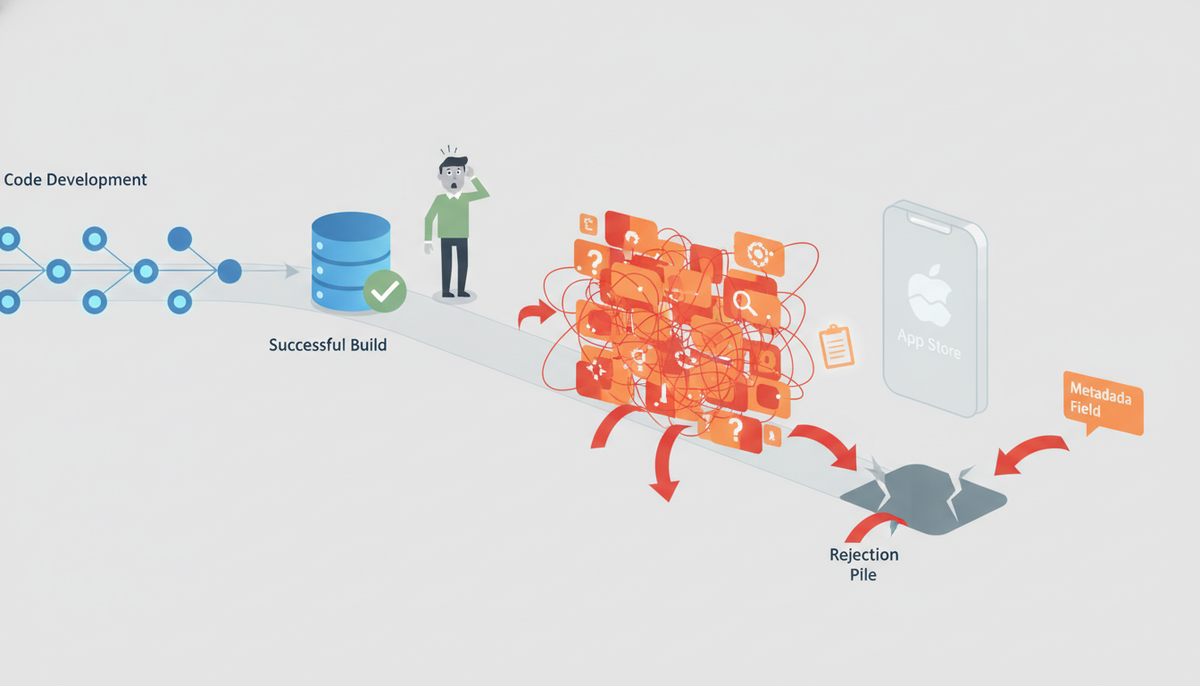
This is the part indie developers underestimate. You test your app for weeks, ship a clean build, and get bounced on a screenshot showing a feature behind a paywall that isn't disclosed, or a subtitle that promises something the app doesn't do yet. None of that shows up in a crash log. It shows up in App Store Connect as a rejection citing Guideline 2.3 — Accurate Metadata — days after you thought you were done.
This article walks through the full checklist reviewers actually check, field by field: what each one requires, the specific rejection language Apple uses when it's wrong, and the fixes that get you back into review fast. If you want to see what a pass-first submission looks like end to end, the sample report walks through a real pre-submission check field by field.
By the end, you'll have a field-by-field reference you can run against your own submission before you hit "Submit for Review" — not after Apple tells you what you missed.
Key takeaways
- App store metadata requirements cover eleven fields Apple reviews independently of the binary: app name, subtitle, keywords, description, screenshots, preview video, category, age rating, privacy nutrition labels, privacy policy URL, and in-app purchase configuration.
- Guideline 2.3 ("Accurate Metadata") is the rule cited most often in rejections, and it requires every metadata field to match what the shipped build actually does right now, with no credit given for "coming soon" features.
- App name and subtitle are capped at 30 characters each, and the hidden keyword field is capped at 100 characters, so repeating words already in the name or subtitle just wastes searchable space.
- Screenshots and preview videos must be captured from the actual running app under Guideline 2.3.3 — mockups, Figma composites, and paywall-gated features shown without disclosure are the single most common first-time rejection cause.
- Privacy nutrition labels must reflect what every embedded SDK (analytics, ads, crash reporters, billing tools like RevenueCat) actually collects under Guideline 5.1.1, since Apple has pulled apps post-release for labels that said "no data collected" while a bundled SDK was still transmitting device identifiers.
The App Store Metadata Requirements Checklist Apple Actually Enforces
The full list of metadata fields Apple checks is longer than most indie developers expect: app name, subtitle, keyword field, description, screenshots and preview video, category and secondary category, age rating, privacy nutrition labels, privacy policy URL, support URL, and — if your app sells anything — in-app purchase names, descriptions, and pricing tiers. Every one of these is reviewed, and every one of these can trigger a rejection on its own, independent of whether your app functions correctly.
Guideline 2.3, Accurate Metadata, is the umbrella rule reviewers cite most often. It's short: your app's name, screenshots, description, and keywords have to accurately reflect what the app does, right now, in the build you submitted. Apple doesn't grandfather in metadata from a previous version, and it doesn't give credit for "coming soon" features described in your listing. If your subtitle says "Track Expenses & Sync to Cloud" and cloud sync isn't live yet, that's a 2.3 rejection waiting to happen — not a code issue, not a functional issue, just a mismatch between claim and reality.
Where metadata review happens in App Store Connect
Metadata review isn't a separate stage that happens after your build passes functional testing — it runs in parallel, inside the same review pass. When you submit a version in App Store Connect, the reviewer opens your listing (name, screenshots, description, keywords) at the same time they install and test the binary. A metadata problem can reject your submission even if the app itself works perfectly, and a functional problem can reject it even if the listing is flawless. Treat them as two independent pass/fail checks running side by side, not a two-step gate where metadata is an afterthought.
The eight metadata fields Apple flags most
In order of how often they cause rejections: screenshots that show unavailable features or non-app content, keywords that reference competitor names or unrelated trending terms, descriptions that overstate functionality, missing or inaccurate privacy nutrition labels, a privacy policy URL that 404s or doesn't match data practices, in-app purchase metadata that doesn't match what's configured in App Store Connect (a common gap when using RevenueCat and metadata goes out of sync), permission usage strings that don't explain why the app needs access (especially common in Expo apps with generic permission descriptions), and age ratings that don't match actual app content, like a 4+ rating on an app with user-generated content or ads.
The rest of this article goes field by field through each of these, with the exact rejection wording Apple uses and what to fix before you resubmit.
App Name, Subtitle, and Keyword Field Requirements (Guideline 2.3.7)
Character limits for name, subtitle, and keywords
App Store metadata has hard limits, and App Store Connect will block submission if you exceed them. The app name field caps at 30 characters. The subtitle caps at 30 characters. The keyword field — the hidden field used for search indexing, not shown to users — caps at 100 characters total, comma-separated, no spaces needed after commas.
That 100-character keyword field is easy to waste. Apple doesn't want restated words: if "budget" is already in your app name or subtitle, repeating it in the keyword field burns characters for nothing, since App Store search already indexes name and subtitle text. Plurals and close variants ("tracker" / "trackers") also waste space — Apple's indexing handles basic stemming, so you get more coverage picking distinct terms over near-duplicates.
Keyword stuffing and metadata rejections
Guideline 2.3.7 covers "Accurate Metadata" and explicitly bars irrelevant keywords, competitor app or company names, and terms unrelated to your app's actual function. This is a real rejection trigger, not a suggestion. Reviewers check whether your name, subtitle, and keywords describe what the app does — not what you wish it ranked for.
Three combos that get flagged in practice:
- Name: "Budget Tracker - Expense Manager, Bills & Savings Planner" — this reads as keyword stuffing inside the name field itself. Apple expects a name, not a search-term list; anything past the first few words looks engineered for ranking rather than identification.
- Subtitle: "Better than Mint & YNAB" — naming competitor apps in your subtitle is a direct 2.3.7 violation, even as a comparison. Reviewers reject this outright regardless of whether the comparison is accurate.
- Keywords: "instagram,tiktok,free,best app 2026,viral" — unrelated trending terms and superlatives like "best" or "#1" get flagged as irrelevant or unverifiable metadata, since Apple can't substantiate a ranking claim and the terms have nothing to do with a budgeting app's function.
Cramming keywords into the name backfires on two fronts. For ASO, App Store search weighting rewards relevance over repetition — a bloated name doesn't out-rank a clean one and often reads as spam to users scanning search results, hurting your tap-through rate. For rejection risk, an overloaded name is one of the fastest ways to trigger manual metadata review under 2.3.7, adding days to your submission timeline before you even get to the build itself. A tight, accurate name and subtitle, paired with a keyword field that adds genuinely new terms, is both safer and more effective.
Screenshot and Preview Video Metadata Requirements (Guideline 2.3.3)
Screenshot requirements by device size
Apple requires screenshots sized to specific device classes, and App Store Connect rejects uploads that don't match its accepted resolutions. At minimum, plan for:
- 6.9" display (iPhone 16 Pro Max and similar) — required for all apps with an iPhone build.
- 13" iPad Pro (or 12.9" for older generations) — required if your app supports iPad, even as a scaled-up iPhone layout.
- Additional device sizes are optional but recommended if your UI meaningfully differs across screen sizes — a landscape-only game or a tablet-specific layout benefits from showing that context.
You can supply fewer sets than Apple's full device matrix in most cases — App Store Connect will scale your largest-size screenshots down for smaller devices — but the scaled version must still accurately represent the UI at that size. If your layout breaks or clips on a smaller screen, that's a real rejection risk even though you didn't upload a dedicated screenshot for it.
What preview videos must show
Guideline 2.3.3 requires screenshots and preview videos to reflect actual app functionality — not concept art, not marketing composites, not a Figma mockup with a phone frame around it. This is the single most common first-time rejection reason for indie developers: the screenshots look great, but they show a UI state that doesn't exist in the shipped build, or they're staged in a design tool rather than captured from a running instance of the app.
Preview videos have their own rules on top of that. They must be captured from actual on-device or simulator app usage — not compiled marketing footage. Apple caps preview video length at 30 seconds. Videos can't include external branding, price callouts, or content that doesn't appear in the app itself — no logo bumpers, no "as seen on" badges, no third-party trademarks layered over the footage.
The failure mode worth watching for: screenshots or video that show a feature gated behind a paywall you haven't configured yet, an onboarding flow that's been redesigned since the screenshots were taken, or placeholder content (Lorem ipsum, sample data) presented as if it's real. Reviewers compare your metadata against the live build during review, and a mismatch — even an honest one caused by shipping a UI update after screenshots were captured — triggers a rejection under 2.3.3. If you want to see what this kind of mismatch looks like when it's caught before submission rather than after, the sample report shows an example of exactly this class of flag.
Privacy Labels and Data Disclosure Metadata (Guideline 5.1.1)
App privacy labels aren't a checkbox you fill in once and forget. They're metadata — as much a part of your listing as your screenshots or description — and Apple treats them that way under Guideline 5.1.1. The App Privacy questionnaire in App Store Connect asks what data your app collects, whether it's linked to the user's identity, and whether it's used for tracking. Your answers render as the "nutrition label" buyers see before they download. Get it wrong and you're not looking at a cosmetic warning — you're looking at rejection during review, or removal after the fact if Apple's post-release spot checks catch the gap.
Privacy nutrition label accuracy
The label has to match what your binary actually does, not what you intended it to do. This is where most indie apps trip up, because the questionnaire asks about your app's behavior as a whole — including every SDK you've dropped in.
Analytics SDKs (Firebase, Mixpanel, Amplitude), ad networks (AdMob, Meta Audience Network), and crash reporters (Sentry, Crashlytics) all collect data on your behalf, often before you've written a line of your own tracking code. If you declared "no data collected" but Firebase Analytics is quietly sending device identifiers and usage events, that's a direct mismatch between your metadata and your app's runtime behavior — exactly what Guideline 5.1.1 enforcement targets. Apple has pulled apps post-release for this, not just rejected them pre-launch.
The fix isn't complicated, just tedious: audit every third-party SDK in your dependency tree, check each vendor's own privacy documentation for what it collects, and make sure every data type shows up in your ASC questionnaire — Device ID, Usage Data, Diagnostics, Identifiers, whatever applies. If you're using RevenueCat for billing, remember it collects purchase history and, depending on config, some device data — that needs its own line in the label too. When you're not sure what a dependency is sending over the wire, treat it as "collects" until you've verified otherwise; guessing "no" is the version of this mistake that gets apps removed.
Privacy policy URL requirements
The privacy policy URL field in App Store Connect isn't satisfied by a link to your company's general privacy page if that page doesn't actually describe what this app does. Apple's reviewers check that the URL is live (no 404s, no placeholder pages), publicly accessible without login, and specific enough to cover the app's actual data practices — not a boilerplate paragraph copied across five different products.
A compliant page names the data types you collect, why you collect them, and how users can request deletion — matching the SDK audit above line for line. SubmitPreflight's own privacy page is built to that standard: specific to what the product actually collects, not a generic legal template. Use it as a reference for the level of specificity Apple expects, then apply the same approach to your own app before you type the URL into ASC.
In-App Purchase and Subscription Metadata Requirements
IAP and subscription metadata is where indie apps hit a second, quieter category of rejection: not because the purchase flow is broken, but because what App Store Connect says about your products doesn't match what StoreKit reports at runtime — or what your billing layer reports back to you.
StoreKit metadata Apple cross-checks
Every in-app purchase and subscription you configure in App Store Connect has a display name, a description, a price tier, and — for subscriptions — a subscription group name and duration. Apple's review process cross-checks these fields against what StoreKit actually returns when your app queries available products, and against what the app's UI shows the user at the point of purchase.
Common failure patterns: a subscription renamed in ASC after submission but not updated in the app's paywall copy, a price tier that doesn't match what's displayed on the purchase screen, or a subscription group description that doesn't reflect what the group actually unlocks. Any of these is a mismatch a reviewer can catch just by tapping through your paywall during testing — no special tooling required on their end. Before you submit, walk your own purchase flow the way a reviewer will: compare every name, price, and description on screen against exactly what's configured in ASC.
Missing subscription metadata (RevenueCat apps)
Apps that hand billing off to a third-party layer like RevenueCat face a specific version of this problem: metadata that exists correctly in App Store Connect but never makes it into what the billing SDK reports back to your app, or vice versa. RevenueCat maps its own product identifiers to StoreKit's, and if that mapping is incomplete — a product added in ASC but not yet configured in RevenueCat's dashboard, or a subscription group renamed in one place but not the other — your app can end up displaying stale or missing metadata to users, which is enough to trigger a 2.1 or metadata-accuracy rejection.
This is a common enough failure mode with RevenueCat integrations that it's worth checking explicitly rather than assuming your dashboards agree. SubmitPreflight documents this exact RevenueCat metadata gap — what triggers it, and how to verify your ASC and RevenueCat configurations are actually in sync before you submit. If you're shipping with RevenueCat, treat that reconciliation step as a required part of your submission checklist, not an optional nice-to-have.
Permission Strings and Localized Metadata for Cross-Platform Apps
Info.plist usage description strings are metadata too, and reviewers read them literally. Every NSCameraUsageDescription, NSLocationWhenInUseUsageDescription, NSPhotoLibraryUsageDescription, and similar key needs a sentence that says what the app does with that permission — not what the permission is for in the abstract. "This app needs access to your camera" tells the reviewer nothing and gets flagged under Guideline 5.1.1 as an insufficient purpose string.
NSUsageDescription strings Apple actually reads
Apple's reviewers test permission prompts during the review pass. If the app requests camera access and the string says "Used to scan documents" but the app actually uses the camera for video calls, that mismatch reads as either sloppy metadata or a disguised feature — both slow down or sink your review. Write each string around the actual user-facing action: "RankPilot scans your receipt to extract line items," not "Camera access required."
This is where cross-platform apps trip most often. SubmitPreflight's guide to fixing boilerplate permission strings in Expo projects covers the specific failure mode: Expo-managed workflows generate Info.plist permission strings from app.json config plugin defaults, and those defaults ship as generic placeholder text. If you added expo-image-picker for a profile photo feature and never touched the generated NSPhotoLibraryUsageDescription, you're submitting a string that describes no real behavior in your app. Reviewers catch this pattern constantly because it's a known Expo signature, not a one-off mistake.
Audit every permission your app requests against every string in Info.plist before submission. If a permission is requested but barely used, either write a string that reflects the real, narrow use case or remove the capability entirely — unused permissions with vague strings are an easy rejection.
Localizing metadata for multiple storefronts
If you're submitting to storefronts outside your primary language market, App Store Connect requires localized versions of your app name, subtitle, description, keywords, and screenshots for each additional language you list — not just a translated binary. A German storefront listing with English screenshots and an English description, submitted alongside a claim of German localization, is inconsistent metadata and can trigger review delays.
Permission strings should be localized too, using InfoPlist.strings per language (or the Expo config plugin's per-locale overrides). A French user reading an English camera justification is a worse experience and, if your listing claims full French localization, a mismatch reviewers can flag under the same consistency checks that cover screenshots and descriptions.
Account Deletion and Legal Metadata Requirements
Guideline 5.1.1(v) requires that any app supporting account creation also support account deletion, initiated from inside the app — not just a "contact support to delete your account" email link. The deletion flow itself counts as metadata: reviewers test it during submission, and if the button is missing, buried, or routes to a web form instead of completing the deletion in-app, that's a rejection, not a warning.
The requirement is specific. Deleting the account must actually delete or anonymize the user's data, not just log them out or deactivate the UI. A "delete account" button that sets a deleted flag but leaves the record queryable doesn't satisfy the guideline if Apple asks you to demonstrate the flow. If your app requires account creation to function at all — no guest mode, no browsing without login — this requirement applies to you unconditionally.
This is a recurring rejection point for apps built quickly on Expo or React Native, where account creation often ships from a template or auth boilerplate (Firebase Auth, Supabase, Clerk) well before anyone builds the corresponding deletion path. The signup screen exists on day one; deletion gets left for "later," and later is App Store review. SubmitPreflight's walkthrough on implementing account deletion in an Expo app covers the in-app flow Apple expects and how to wire it to your backend so the deletion is real, not cosmetic.
Terms of use are the other legal metadata item tied to this section, and they matter specifically if your app sells subscriptions. Guideline 3.1.2 requires a functional link to your Terms of Use (EULA) in both the app binary and the App Store Connect metadata for the subscription. If you're using Apple's standard EULA you don't need a custom one, but if you've written your own terms — which most subscription apps do, to cover cancellation policy, renewal terms, and dispute resolution — that link needs to resolve to a real page, not a placeholder. SubmitPreflight's own terms page is a working example of what that page should contain: renewal terms, cancellation instructions, and the legal boilerplate Apple expects to see linked from both the app and the listing. Missing or broken terms links are an easy, avoidable rejection for anything with an IAP subscription attached.
Fix Your Metadata Before Apple Rejects It
Metadata rejections are the most avoidable rejections in App Store review. Unlike a design rejection under Guideline 4.0, where a reviewer's subjective read of your UI can go either way, metadata rejections come from checkable facts: does your subtitle match Guideline 2.3.7, do your screenshots reflect the current build under 2.3.3, does your privacy label match what your SDKs actually collect under 5.1.1, does your subscription disclose price and terms before purchase. Every one of these has a documented right answer. If you get it wrong, that's a process failure, not a taste disagreement — which means it's fixable before you ever hit submit.
That's the point worth acting on: run a pre-submission metadata check against the checklist in this article, every time, not just on your first submission. Teams get complacent after a few clean approvals and stop re-checking metadata when they add a new IAP tier, swap analytics SDKs, or localize into a new market. Any of those changes can silently break something you already had right. A five-minute pass through app name and subtitle length, screenshot accuracy, privacy label accuracy against your current SDK list, IAP metadata completeness, permission string clarity, and account deletion visibility catches the overwhelming majority of Apple's metadata rejection reasons before a reviewer ever sees your build.
Doing this by hand works until it doesn't — new SDK, new permission, new locale, and something slips through. If you want to see what a full check looks like before you decide whether to run one, the sample report shows the exact output: every checklist item above with a pass/fail and the specific guideline it maps to.
For indie developers who'd rather not rebuild this checklist by hand before every submission, that's exactly what the App Store Preflight Kit is for — a Markdown-first skill pack that runs this same check automatically against your actual app metadata, screenshots, privacy labels, and IAP config, so the gaps surface before Apple's reviewer finds them.
You already did the hard part building the app. Don't lose a review cycle to a subtitle character count or a missing privacy label. Run the check before you submit.
Frequently asked questions
What are Apple's app store metadata requirements?
Metadata covers everything reviewers check before touching your binary: app name (30 characters), subtitle (30 characters), description, keywords field (100 characters), privacy policy URL, support URL, age rating, and category. Guideline 2.3 (Accurate Metadata) requires all of it to reflect what the app actually does. Screenshots and preview videos count too — Guideline 2.3.3 requires them to show real app UI, not concept art. Get any of these wrong and you're looking at a Metadata Rejection, not a binary rejection — usually a faster fix, but it still resets your review clock.
What happens if my app's metadata doesn't match its actual functionality?
You get rejected under Guideline 2.3 (Accurate Metadata). Common triggers: your description promises a feature you haven't shipped yet, your keywords reference a competitor's app name, or your screenshots show a UI state users can't actually reach. Apple's reviewer compares your listing against the live build during testing — this is a manual check, not automated, so vague or aspirational copy gets caught. Fix is straightforward: rewrite the listing to match current functionality exactly, then resubmit. Repeated mismatches can also trigger closer scrutiny on your next few submissions.
Can I update app store metadata without submitting a new build?
Yes, for most fields. Description, keywords, promotional text, support URL, and screenshots can be edited in App Store Connect and go live without a new binary — promotional text updates instantly with no review at all. App name, subtitle, and category changes do require App Review, even without a new build. This matters during a rejection: if the reviewer only flagged metadata, you can often fix it directly in ASC and resubmit for metadata-only review, which is typically faster than a full binary review cycle.
Do screenshots count as metadata during App Store review?
Yes — Guideline 2.3.3 treats screenshots as metadata, not decoration. They must show your actual app running, in the correct device frame, without prices or claims that aren't in the app itself. Reviewers flag mockups that show unreleased features, UI that doesn't match the current build, or misleading before/after comparisons for subscription apps. If you're using screenshots to imply functionality (say, an AI feature shown mid-generation) that the free tier can't actually reach, that's a rejection risk even if the screenshot itself is real.
Why do RevenueCat and other billing SDKs cause metadata rejections?
They don't cause rejections directly — misaligned metadata around them does. The common failure: your app description or screenshots reference pricing, trial terms, or subscription tiers that don't match what's actually configured in App Store Connect's IAP setup, or RevenueCat's paywall isn't fully synced with your ASC products yet at submission time. Guideline 3.1.2 requires subscription terms in metadata to exactly match what's presented at purchase. Always re-verify your ASC product list and paywall copy the day you submit, not the day you configured RevenueCat.